
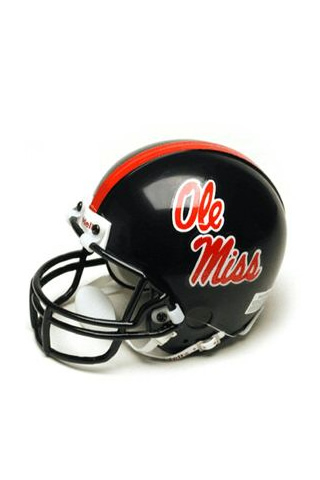
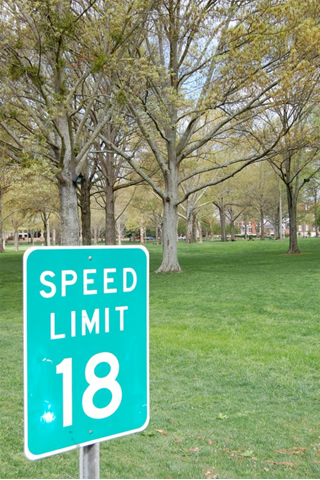
3 Ole Miss iPhone Wallpapers
Decided to add a few Ole Miss pics as wallpaper on my iPhone today..
Ended up, my decision was the easiest part…Locating the images, formatted correctly (ie. 320×480 pixels), was the bear. Cause very few exist.
So I decided to create my own.
Once I created’em, though, I kinda liked them, and thought others might like to use them too.
So, they found their way here.
2 are from our own snapshot collection (thanks to Derek Moreton), and the other a stock University image (the Ole Miss helmet).
(instructions on how to add to an iPhone are below)

How to add these as wallpaper on an iPhone?
Easy.
- Save the image to your hard drive (I found it easiest to create a specific folder called ‘iphone’)
- Open up iTunes
- Plug your iPhone in
- When it appears under ‘Devices’, select your phone from the menu, then click the ‘Photos’ tab.
- Check the ‘Sync photos from:’ box, and select the folder where you added the image. (‘iphone’ in my case)
- Click the Sync button
- Once synced, go to ‘Settings’ on your iPhone, select ‘Wallpaper’, then ‘Photo Library’, then choose your image.
- After you choose, move the image on the screen (you usually want to move a hair up to account for the ‘slide to unlock’ button present on the wallpaper intro).
- Then click ‘Set Wallpaper’, and you’re done.
You’ll wanna unplug your iPhone first, to see the image, as they don’t seem to appear when they’re plugged in to a pc/mac
Let me know if you run into any snafus… I’ll do my best and help..
enjoy!


Helmet one is awesome!
sweetness.. many many thanks!
Another good idea, Peter. Keep them coming.
I am going to submit one with me- shirt off, Col. Reb head on, loin cloth covering my sweet parts. Is there a way you can charge for the downloading of that one, though? I’ll split the profits with you. We are certain to both be millionaires.
70/30 is the best I can offer, deal?
Sounds good. I was thinking 50/50 but you’ll still be rich off 30.